QR codes have become an indispensable tool in modern digital interactions, powering mobile payments, event ticketing, wireless network connections, and marketing campaigns. If you're wondering how to scan a QR code, modern mobile operating systems make the process incredibly simple, allowing users to scan codes instantly without relying on third-party scanner applications. Additionally, platforms like QRCode GEN make managing and decoding QR codes effortless on any device.
What You Need to Scan a QR Code?
To scan a QR code, you only need a smartphone equipped with a clean rear-facing optical lens and an operating system that supports native code recognition (iOS 11 or Android 9 and newer). Basic environmental conditions such as adequate ambient lighting and a steady hand ensure the camera sensors can differentiate the matrix cells.
While offline data like local Wi-Fi passwords, plain text, or contact cards can be decoded without an internet connection, opening web links, online payment gateways, and dynamic landing pages requires active cellular data or a Wi-Fi connection.
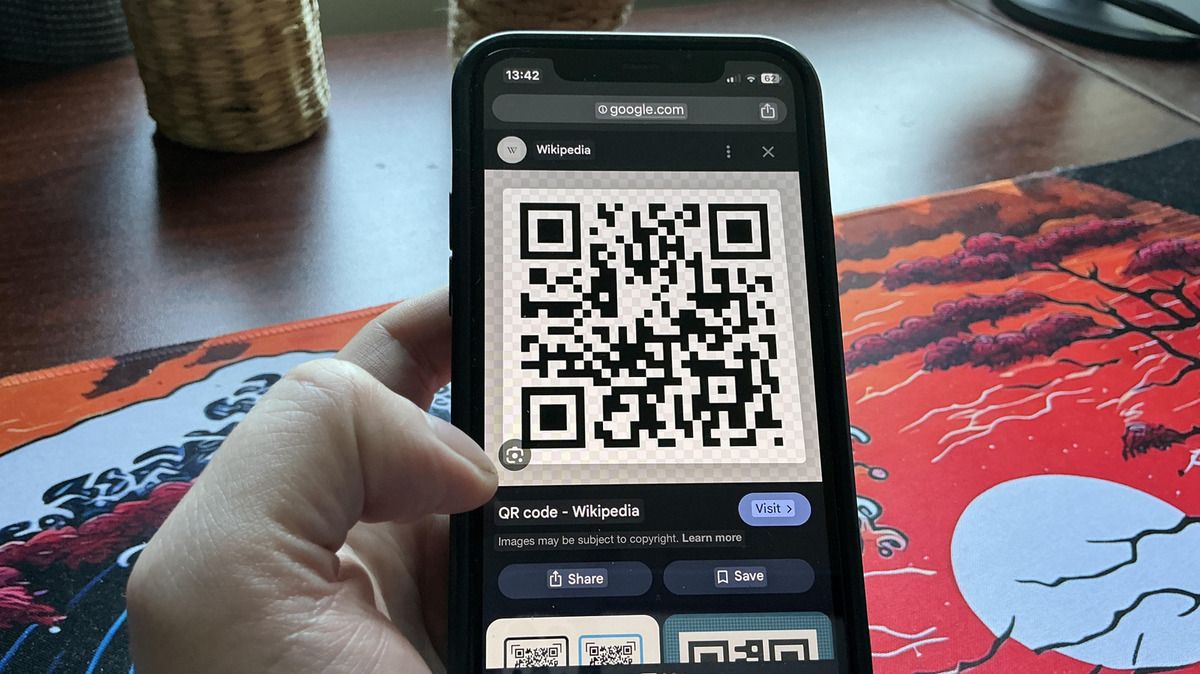
Modern smartphones scan QR codes natively through default camera apps without third-party downloads
How to Scan a QR Code on Android Devices
Depending on your device manufacturer, Android version, and whether the code is printed or displayed directly on your screen, Android offers several flexible scanning methods:
Using the Default Camera App
The native camera application provides the fastest way to read physical codes in daily environments:
- Open the default Camera app in Photo mode.
- Point the lens steadily at the physical QR code on printed signs, screens, or packaging.
- Hold the phone still until the camera automatically detects the matrix.
- Tap the pop-up link banner or notification that appears over the screen to open the destination.
Using the Quick Settings Tile
You can access a dedicated scanner directly from your notification panel without opening the camera app:
- Swipe down from the top edge of your screen to open the Quick Settings panel.
- Tap the Scan QR code tile.
- Align the camera viewfinder over the code to scan immediately.
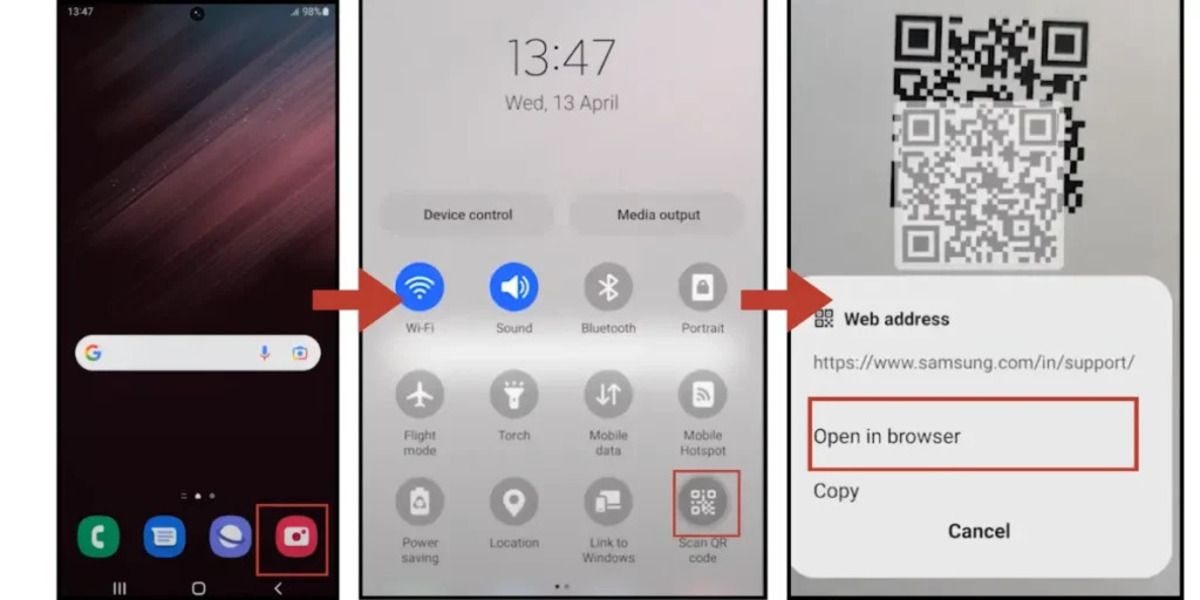
Android devices can scan QR codes using the Camera app or the Quick Settings scanner
Using "Circle to Search" for On-Screen Codes
When a QR code appears inside an email, social app, or PDF on your device screen, you can decode it without a second phone:
- Long-press the Home button or the navigation handle at the bottom of the screen.
- When the Google overlay activates, draw a circle around the QR code with your finger.
- The system will automatically decode the image and display the destination link on your screen.
Note: To enable this feature, go to Settings > search for Circle to Search > toggle the switch ON).
Using Google Lens
Google Lens offers versatile optical recognition for both live codes and saved gallery images: Open Google Lens directly via your Camera app, Google Photos, or the Google search widget to point at live codes or scan saved images from your photo gallery.
Scanning via Online Browser Tools
If you have a screenshot stored on your device, you can use a browser-based reader for immediate access: Open your mobile browser and upload the image file directly to the Scan QR Code online tool to decode the content instantly without third-party software.
How to Scan a QR Code on iPhone and iPad (iOS)
Apple provides system-level QR scanning across iOS devices, giving users multiple built-in options to access embedded information:
Using the Native Camera App
The default iOS Camera app automatically identifies QR codes in the standard photo frame:
- Open the native Camera app from the Home Screen, Lock Screen, or Control Center.
- Select Photo mode and hold your iPhone so the entire QR code sits clearly within the viewfinder.
- Wait for the yellow notification bubble to appear on the screen.
- Tap the yellow banner to launch the link directly in Safari.
The iPhone Camera app can scan QR codes instantly
Using the Control Center Code Scanner
Apple includes a dedicated full-screen scanner designed for low-light or quick-access scanning:
- Swipe down from the top-right corner of your screen (or swipe up from the bottom on older iPhone models) to reveal the Control Center.
- Tap the Code Scanner icon to open the dedicated full-screen scanner.
Note: If the shortcut is missing, go to Settings > Control Center > tap the + icon next to Code Scanner to add it).
Scanning Saved Images via Browser
When you capture a code on your screen, you can process the image directly within your browser: Upload the screenshot directly to an online web scanner instead of searching for a second phone to read your display.
How to Scan a QR Code from an Image or Screenshot Online
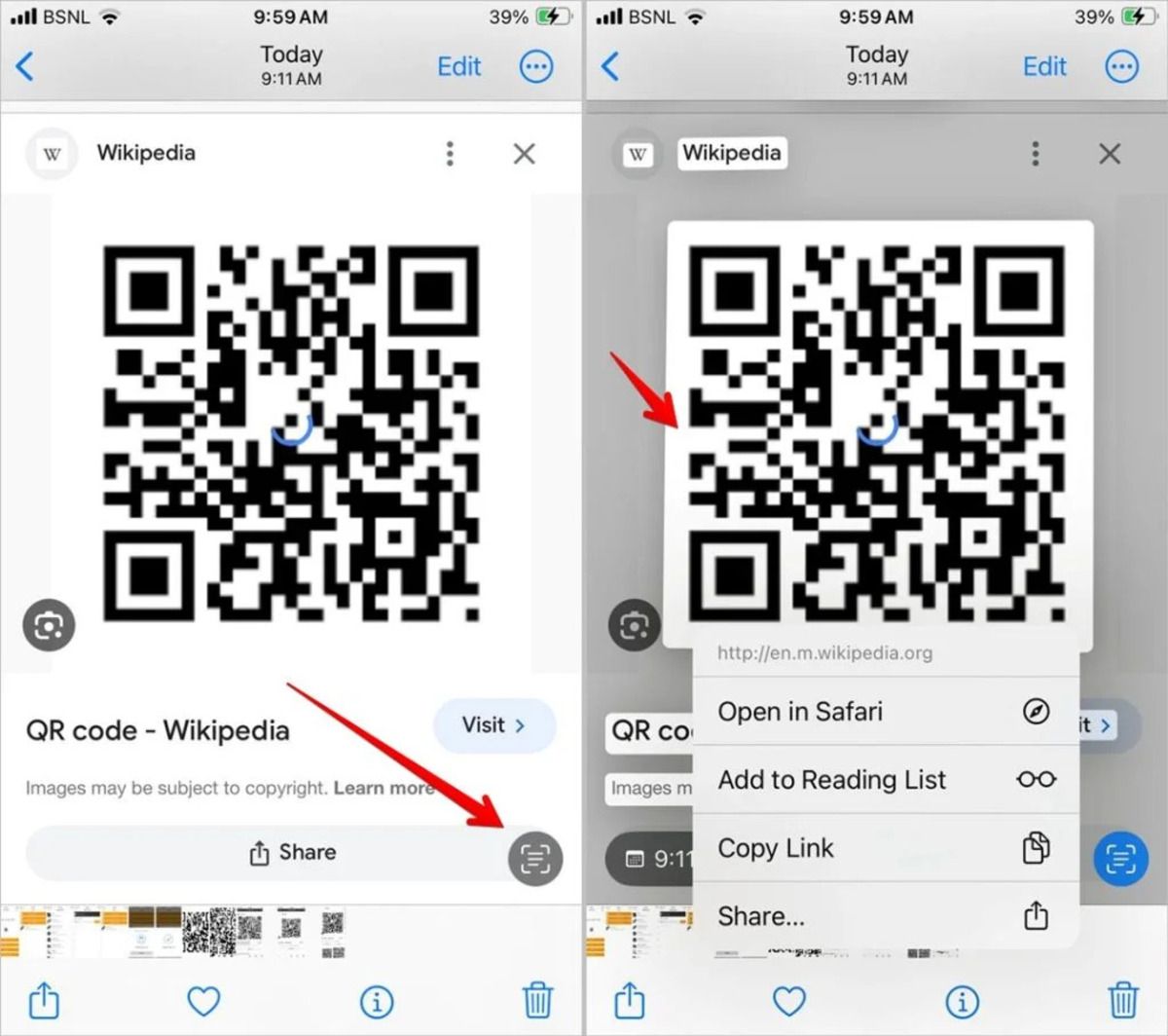
Scanning a QR code that is already displayed on your device screen does not require a second phone. iPhone users can open the screenshot in the Photos app, tap and hold the QR code directly, and choose Open in Safari via Apple Live Text. Android users can view the image inside Google Photos and tap the Lens button to extract the destination URL overlay.
Alternatively, browser-based web decoders process image files (PNG, JPG, or WebP) directly on your device. These online tools decode image pixels locally within the browser without uploading private data to remote servers, opening verified HTTP or HTTPS destinations automatically in a new tab.
Screenshots and saved photos can be scanned directly using Apple Live Text, Google Lens, or online scanners
How to Scan a QR Code on PC and Mac (Desktop)
Desktop users can scan QR codes without relying on a smartphone. Physical QR codes can be scanned using a built-in or external webcam through native camera applications or supported browser tools. For QR codes embedded in images, screenshots, or PDF documents, users can upload the file directly to an online QR code decoder and instantly extract the encoded information.
- Open your computer’s camera application and position the QR code within the webcam frame.
- Use a QR code scanner extension available for browsers such as Chrome or Microsoft Edge.
- Upload an image, screenshot, or PDF containing a QR code to an online QR decoder for immediate scanning.
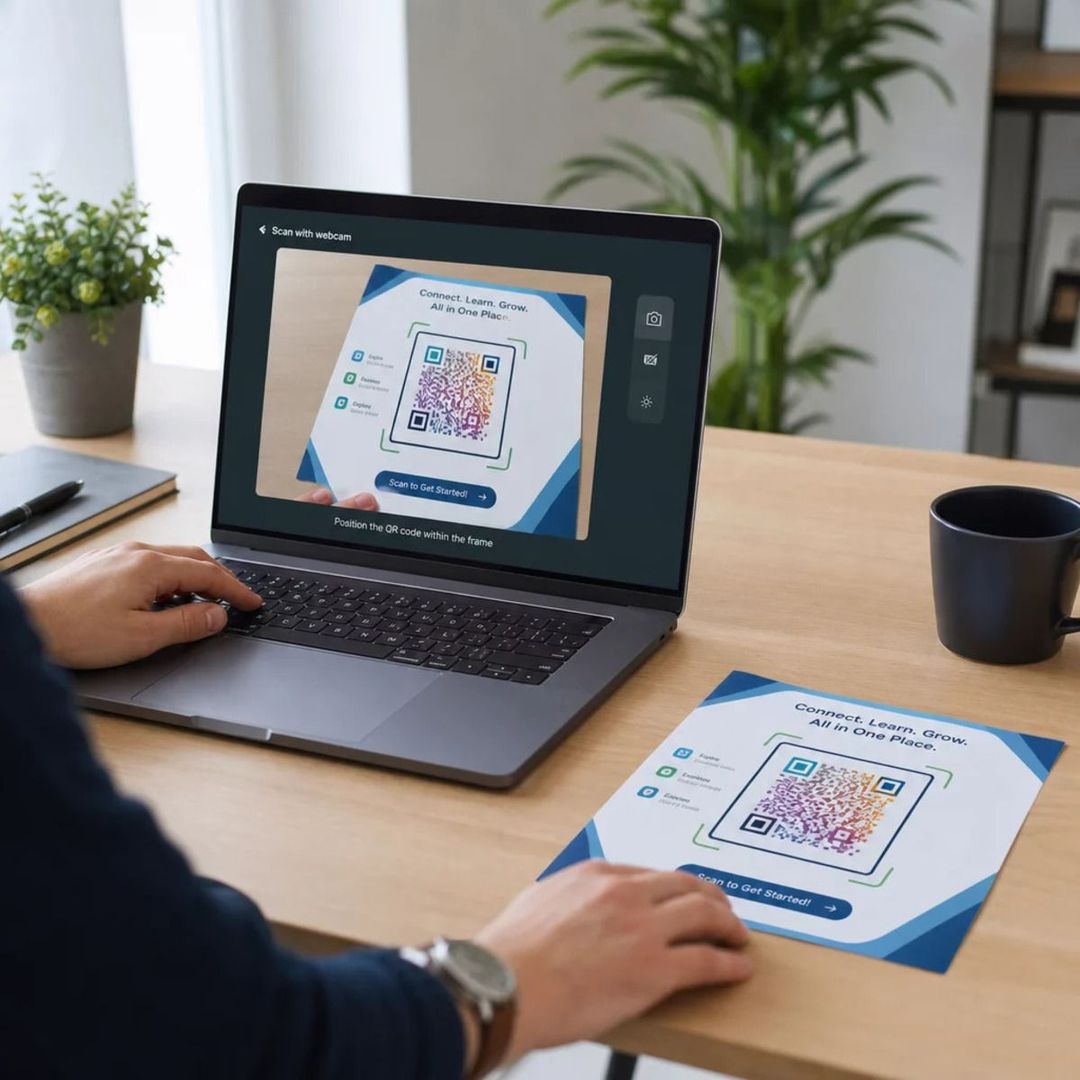
Desktop users can scan QR codes using webcams, browser extensions, or online file upload tools
Why Is My QR Code Not Scanning?
If your camera or scanning tool fails to recognize a code, the issue usually stems from physical scanning conditions, improper sizing, or flawed matrix design. Checking for a few common setup errors will help you troubleshoot and resolve scanning failures quickly:
- Distance and Sizing Mismatch: Standing too close creates optical blur, while standing too far prevents sensors from resolving the grid; always adhere to the 10:1 distance-to-width ratio.
- Surface Glare and Dim Lighting: Reflections on glossy laminations, curved packaging, or low-light environments scatter light and disrupt sensor focus.
- Cropped Borders and Missing Quiet Zones: Cutting off the outer white margin or clipping any of the three corner finder patterns prevents scanners from identifying grid boundaries.
- High Payload Density: Overloading static codes with long URLs creates tightly packed modules; using a Dynamic QR code keeps the matrix clean, sparse, and easy to focus on.
- Smudged Camera Lens: Dust or fingerprints on your smartphone lens cause severe blurriness that blocks instant decoding.
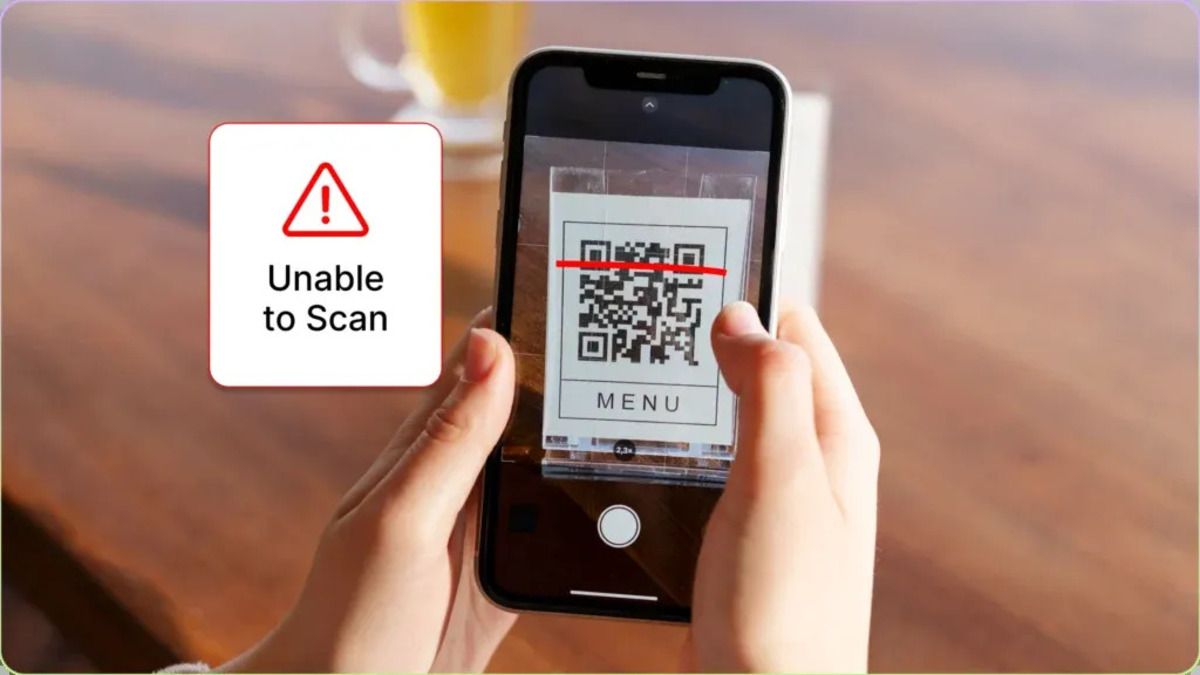
Scan errors stem from poor lighting, reflective glare, low contrast, cropped quiet zones, or dense payloads
>>> Read more: QR code not scanning? Identify the problem before you remake it
QR Code Scanning Safety: Best Practices
Although QR code technology is inherently secure, bad actors can exploit destinations through deceptive practices. You should adopt several standard precautions before interacting with unknown codes:
- Inspect Before Scanning: Check public signs and payment counters for counterfeit physical stickers pasted over legitimate merchant codes.
- Preview the URL Destination: Always review the full domain name in the camera preview bubble before tapping to protect against phishing attempts (Quishing).
- Avoid Entering Sensitive Information: Never input account passwords, banking credentials, or one-time verification codes (OTPs) on unverified websites reached via public QR codes.
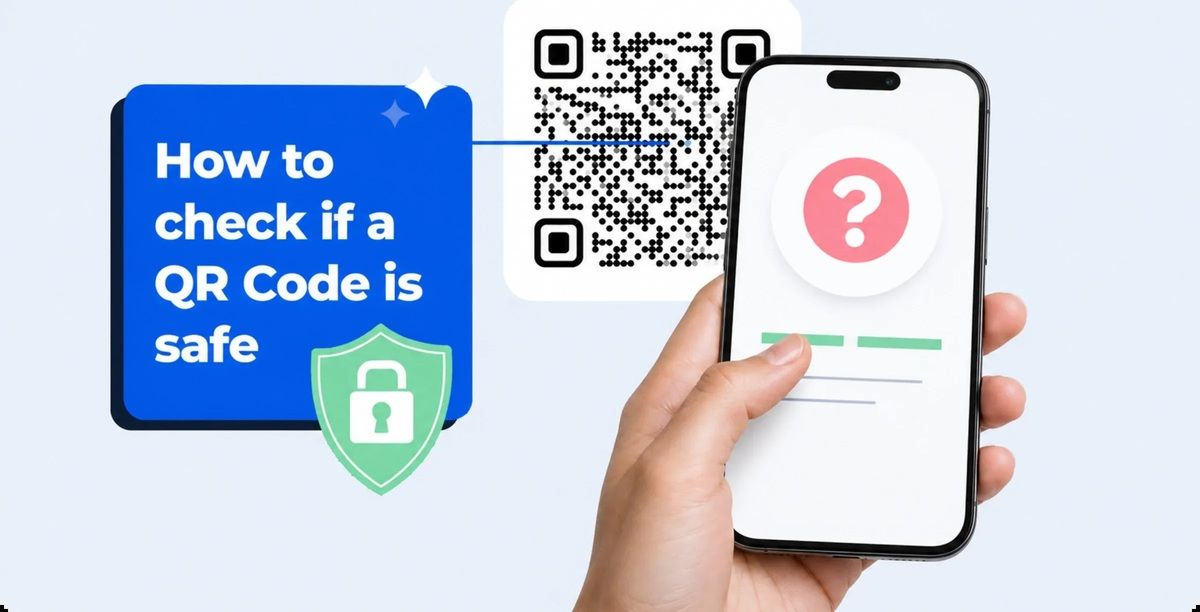
Always inspect physical codes for tampering and verify destination URLs before tapping to prevent phishing
Frequently Asked Questions (FAQ)
Can I scan a QR code without downloading an app?
Yes. Both modern iPhone (iOS 11+) and Android (Android 9+) devices have built-in QR code scanners integrated into their default camera apps.
How do I scan a QR code on an older smartphone?
For older phones without native camera scanning, users can scan codes via Google Lens, Google Chrome, web-based scanners, or lightweight third-party scanner apps.
Do I need internet access to scan a QR code?
You do not need internet access to decode static offline data like Wi-Fi credentials, plain text, or vCard contacts. However, an active internet connection is required to load web links and dynamic redirect URLs.
Why does my camera show a link but won't open it automatically?
Smartphones display a preview link for security reasons, requiring the user to tap the prompt to confirm navigation and prevent malicious redirects.
Scanning a QR code has become a fast, native capability across modern smartphones, tablets, and desktop computers. By leveraging default camera apps, convenient shortcuts like Circle to Search, and secure online tools, accessing digital content takes only seconds. If you need to generate high-quality, scannable codes for your own brand or decode saved screenshots directly in your browser, QRCode GEN provides an all-in-one platform with no limits and seamless cross-device compatibility.