From street-side cafés to five-star hotels, QR code menus are now standard across food service. Convenience and hygiene matter, but a well-designed code does more: it reinforces your brand and guides diners toward ordering.
A plain black-and-white square misses that opportunity. Use the following design standards to create a QR code menu that catches diners’ attention and supports revenue growth.
1. Start With a Branded QR Code
One of the most common mistakes is relying on the default black-and-white design. Diners expect a consistent brand experience, and your QR code should feel like a natural part of it.
1.1. Customize the Colors
Color does more than improve appearance—it supports brand recognition and influences customer perception.
Keep it consistent: Use the exact color codes (Hex codes) from your logo and restaurant interior. An upscale café, for example, might use deep brown or gold, while a vegetarian restaurant may choose green and white.
Use contrasting code and background colors: Maintain strong contrast between the background and QR modules. As a basic rule, the code should be darker than its background. Low contrast is one of the most common reasons a QR code will not scan.
- Tip: Avoid very light colors, such as yellow or pale pink, for the code itself unless the background is extremely dark.
1.2. Add Your Logo
Adding your logo to the center of the QR code—often called a logo QR code—is more than a feature offered by professional QR generators. It helps build trust and gives the code a more polished, professional look.
- Safe logo size: Your logo should cover no more than 25–30% of the QR code area. QR error-correction algorithms can compensate for the covered area, but an oversized logo can make the code unscannable.
- Safe-zone design: Leave a clear white margin around the QR code. Without this quiet zone, phone cameras may have trouble detecting where the code begins and ends.
Put it into practice: With custom QR code design, you can upload a logo and tailor the colors while keeping the code easy to scan.
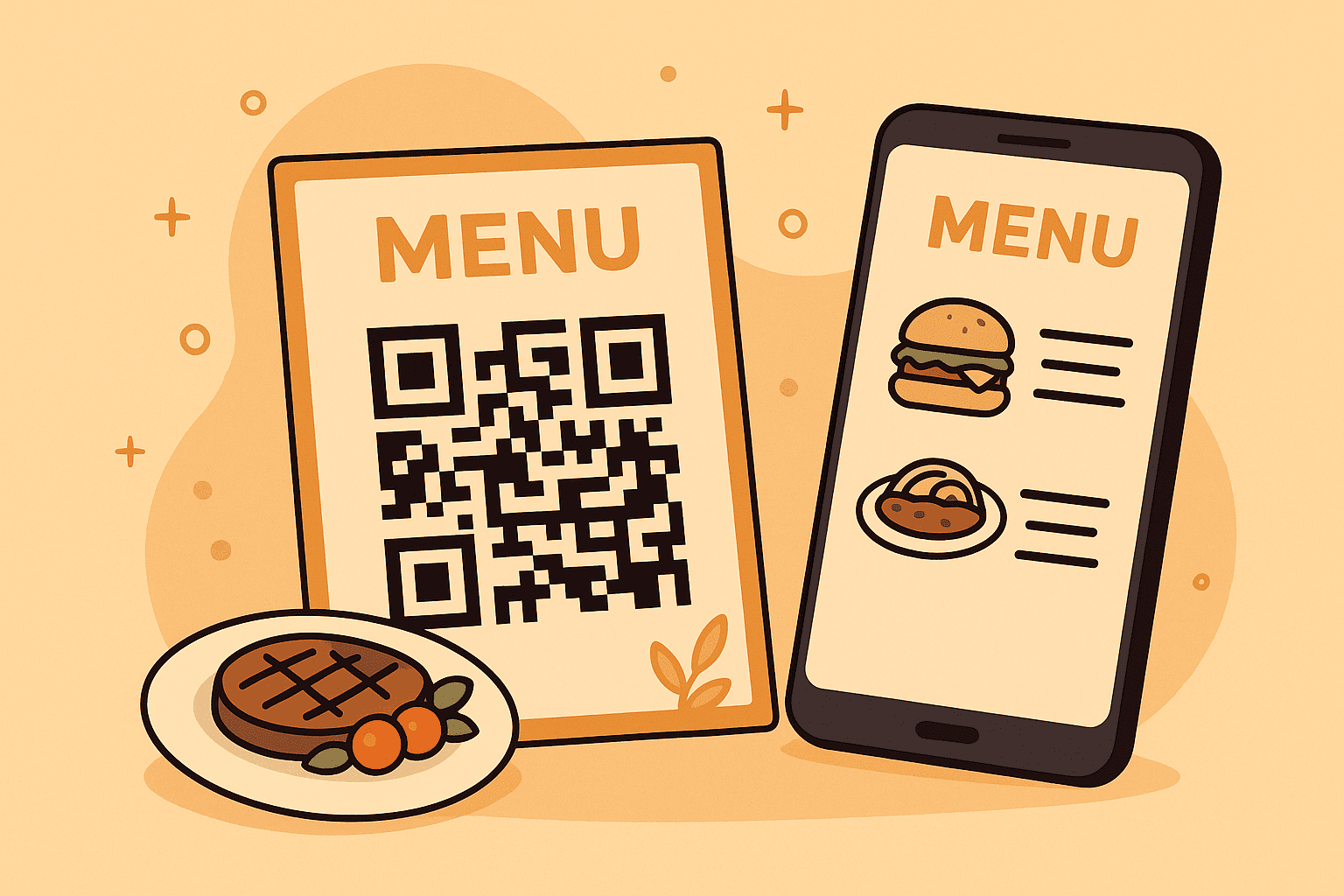
2. Optimize the Landing Page Where Orders Happen
The QR code is only the entry point; the menu landing page does the real selling. Optimizing your digital menu is essential to encouraging customers to place an order.
2.1. Prioritize Page Speed
Restaurant guests rarely have time to wait for a page to load.
- Speed supports revenue: Your digital menu should load in under 3 seconds. When it is slow, customers may leave the page and ask for a paper menu, undermining the purpose of the QR code menu.
- Optimize images: Compress food images before uploading to reduce file size. Well-compressed WebP and JPEG files are suitable options.
2.2. Use High-Quality Food Photography
Diners eat with their eyes first. Strong food photography is one of the most effective ways to inspire orders.
- Professional photography: Give every signature dish a clear, well-lit photo.
- Appetizing presentation: Place larger images beside the dish name rather than making customers open another link just to view a photo.
2.3. Build a Mobile-Friendly Menu Structure
Your menu should be easy to read and navigate on a phone screen.
- Clear categories: Use tabs or headings to group dishes into sections such as Appetizers, Main Courses, Desserts, and Beverages.
- Search and filters: Large menus, such as hotel menus with hundreds of items, need a search feature so guests can quickly find what they want.
- Feature promotions: Place sections such as “Today’s Specials,” “Top Sellers,” or “Exclusive Offers” near the top of the menu to increase conversion rates.
3. Get the Technical Details and Placement Right
For a QR code menu to stand out and scan reliably, consider both its physical placement and technical setup.
3.1. Choose the Right Export Format: SVG vs. PNG
The file format you choose has a direct effect on print quality.
SVG (Scalable Vector Graphics): Best for large-format printing, including posters, standees, and large menu boards. Because it is a vector format, the QR code remains sharp at any size.
PNG (Portable Network Graphics): A good choice for smaller prints, including table cards, business cards, and receipts, while maintaining high quality.
- Note: A capable QR code generator should provide both formats.
3.2. Follow Sizing and Print-Material Standards
- Minimum scannable size: For reliable scanning, a QR code should typically be at least 1 x 1 inch (2.54 x 2.54 cm). A larger size, such as 2 x 2 inches, is easier to scan from a distance.
- Placement: Use standalone table cards made from durable materials such as wood, acrylic, or metal rather than printing directly on tablecloths or paper menus that may wrinkle. Position the code within easy reach, away from shadows and excessive glare.
3.3. Use Dynamic QR Codes
If you need to track performance or update menu content after the code has been printed, use dynamic QR codes.
- Data analytics: Dynamic codes let you track scan counts, scan locations, and device types, including iOS and Android. This data can help show which dishes receive the most attention based on visit volume.
- Edit content: You can change the menu URL—for example, from a Tet menu to a Summer menu—without reprinting the QR code, which can significantly reduce costs.
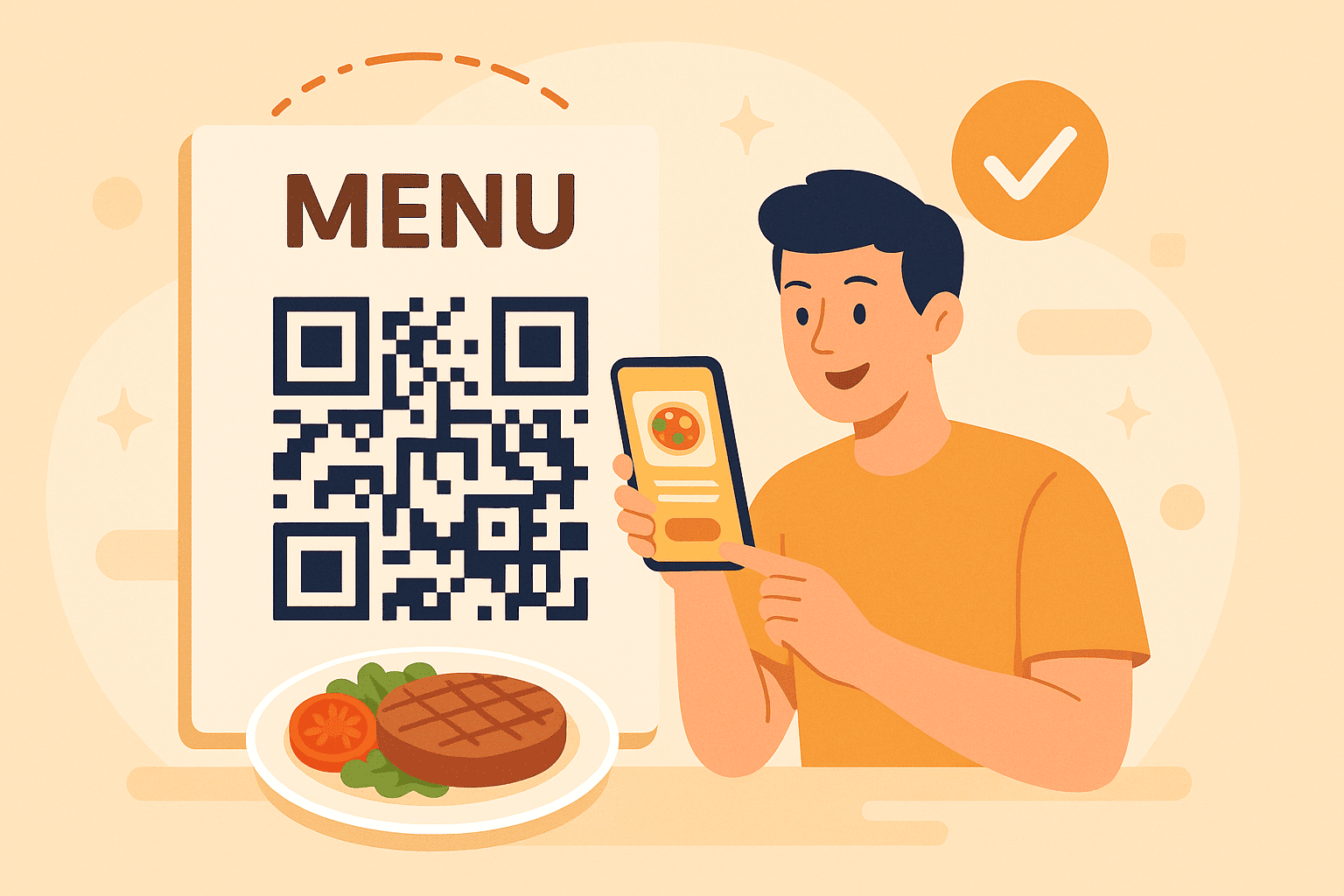
Your QR code menu can be more than a convenient way to access a menu. Treat it as a customer-facing part of your restaurant experience.
Apply these principles to your colors, logo treatment, landing page, and print setup to create a menu that looks polished and works reliably.
Related articles
Prime placement for QR code menus