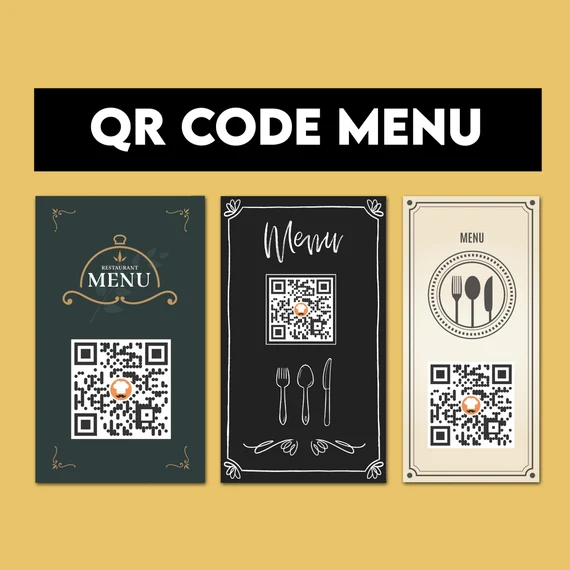
Running a coffee shop, bubble tea store, or small eatery? A QR menu lets customers open your menu with a quick scan on their phone—without printed menus or waiting for staff to bring one to the table.
A QR menu is a simple, cost-effective way to make your menu available digitally. In as little as five minutes, you can create a free QR menu from a phone or computer.
This guide explains how to create a free QR menu for your café, along with design and printing tips to keep it attractive, easy to scan, and practical for customers.
1. What Is a QR Menu, and Why Is It So Popular?
A QR menu is a digital menu customers access by scanning a QR code. They simply open their phone camera, scan the code displayed on a table or counter, and view the full menu, including food and drink items, photos, prices, and descriptions.
Key benefits of QR menus
- Lower printing costs: There is no need for paper menus, and you can update prices or add items whenever needed.
- Fast and convenient: Customers can browse independently, reducing the time spent waiting for service.
- A better customer experience: A clear, modern menu is easy to navigate on a smartphone.
- Less paper waste: Digital menus reduce paper use and waste.
- More ways to promote your menu: Share it on Facebook, Zalo OA, or your website, or print it on promotional flyers.
Thousands of coffee shops and bubble tea stores across Vietnam now use QR menus for customer convenience, lower costs, and a more professional presentation.
2. What to Prepare Before Creating Your QR Menu
Preparing a few essentials in advance will help you create a polished menu more quickly:
- A list of food and drinks, including item names, prices, and short descriptions
- Photos of your items, if available; bright, clear images work best
- Your shop name or logo to include in the QR code
- A smartphone or computer with an internet connection
Tip: Group items into categories such as Coffee, Bubble Tea, Smoothies, and Pastries so customers can browse and choose more easily.
3. How to Create a Free QR Menu for Your Café
Follow these steps to create your menu in as little as five minutes.
Create your digital menu
- Register an account: Sign up or log in to create your menu.
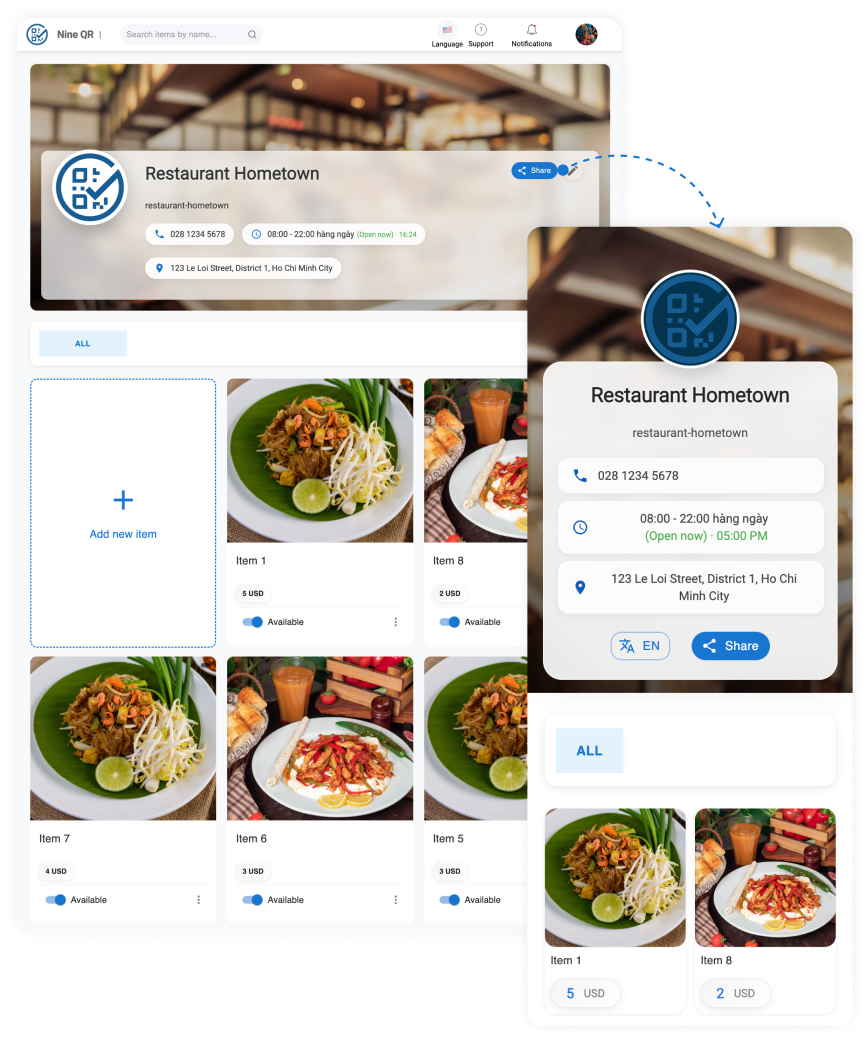
- Create a menu management account: Once your account is ready, you will be taken to a menu page with automatically generated sample information.
- Edit your business details: Update the restaurant name, banner, logo, and other information to match your business.
- Add categories: Create categories if you offer several types of products.
- Add items: Enter each menu item with its details and images.
Share your menu with customers
- Click the Share button: After adding your restaurant and menu details, select the Share button in the top-right corner of the restaurant information page.
- Open the sharing screen: The sharing page displays your QR code and a direct link to the menu.
- Print the QR code: Place the printed code on tables so customers can scan it and view your menu.
- Share the link: When customers contact you through chat apps, send them the menu link so they can browse your offerings from anywhere.
For a dedicated restaurant setup, use a digital restaurant menu to share your menu by QR code.
4. Tips for a More Professional QR Menu
- Add your brand logo: Including your logo in the QR code helps customers recognize your brand. You can upload it and add it while generating the code on QRCode-Gen.com.
- Use an eye-catching frame: A frame with text such as “Scan to view menu” or “Scan me!” makes the next step clear.
- Test on multiple devices: Before printing, scan the code with both iPhone and Android devices to make sure customers can access the menu smoothly.
- Update prices without reprinting: With a dynamic QR code, you can update the menu link without printing a new code.
- Review scan statistics: Some platforms, including the premium version of QRCode-Gen.com, let you track scan numbers, times, and locations.
5. Ways to Use Your QR Menu to Support Sales
A QR menu can do more than provide convenient access to your offerings. Use it strategically by:
- Adding ordering links for ShopeeFood, GrabFood, Zalo OA, and similar services directly to the menu
- Including a customer feedback link for suggestions and comments
- Sharing the menu on social media so customers can browse before visiting
- Offering scan-only promotions, such as “Get 10% off your first order when you scan our QR menu”
- Using dynamic QR codes to see which items customers view most often
6. QR Menu Design Ideas for Your Café
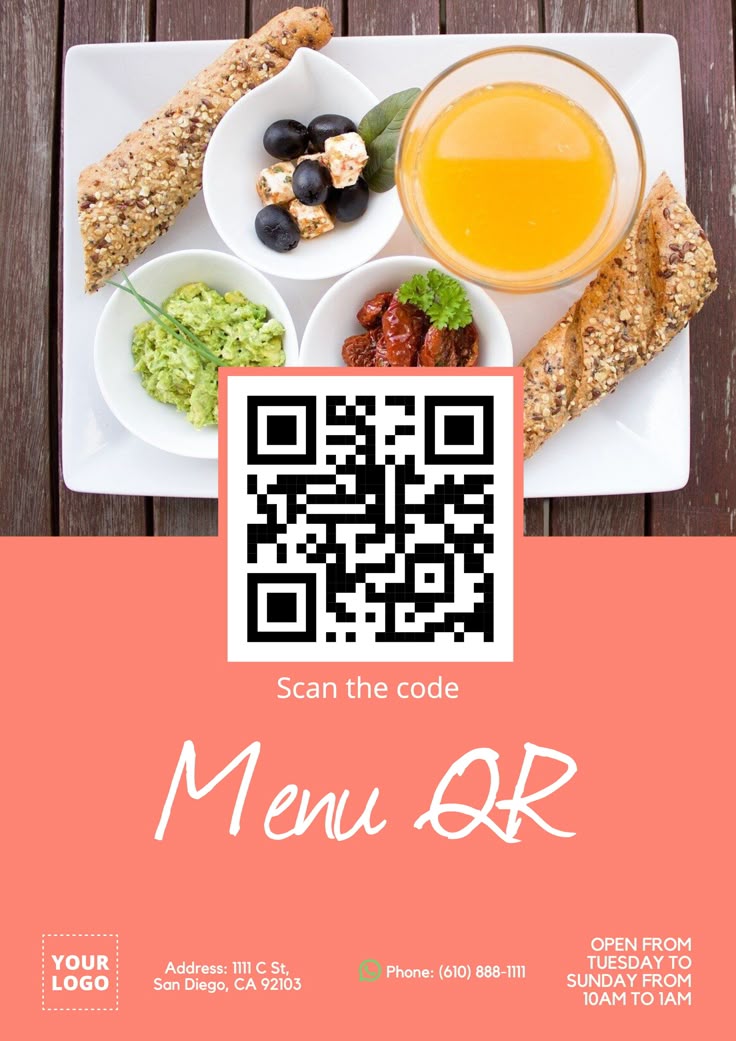
- A modern pastel menu with a cream background and brown text for easy reading
- A minimalist vintage menu in wood-brown tones for classic coffee shops
- A youthful, vibrant menu using mint green and soft orange
- An English-Vietnamese bilingual menu for tourist areas or international guests
You can browse ready-made templates or download a design from Canva, then add your QR code.
7. Conclusion
In just a few steps, you can create a free QR menu for your café, reduce printing costs, and give customers a simpler way to browse your offerings.
Digital menus are increasingly common in the food and beverage industry, helping businesses present their menus professionally, reduce paper use, and promote them across digital channels.
Get started with QRCode-Gen.com and turn your menu into a smarter, more modern experience in as little as five minutes.