Create a free WiFi QR code so guests connect instantly with one scan, no password typing needed. Step-by-step guide to generate, customize, and test yours.
QR Codes for WiFi: Connect Without Typing a Password
Connecting guests to WiFi should be simple. Instead of reading out a long password or asking visitors to type a mix of letters, numbers, and symbols, you can let them scan a QR code and join the network. A WiFi QR code stores the network name, security type, and password in a format that compatible smartphones can recognize. This makes it useful for homes, cafés, hotels, offices, and events where many people need quick network access.
If you want to create one, QRCode-Gen lets you generate a WiFi QR code directly in your browser without installing software.
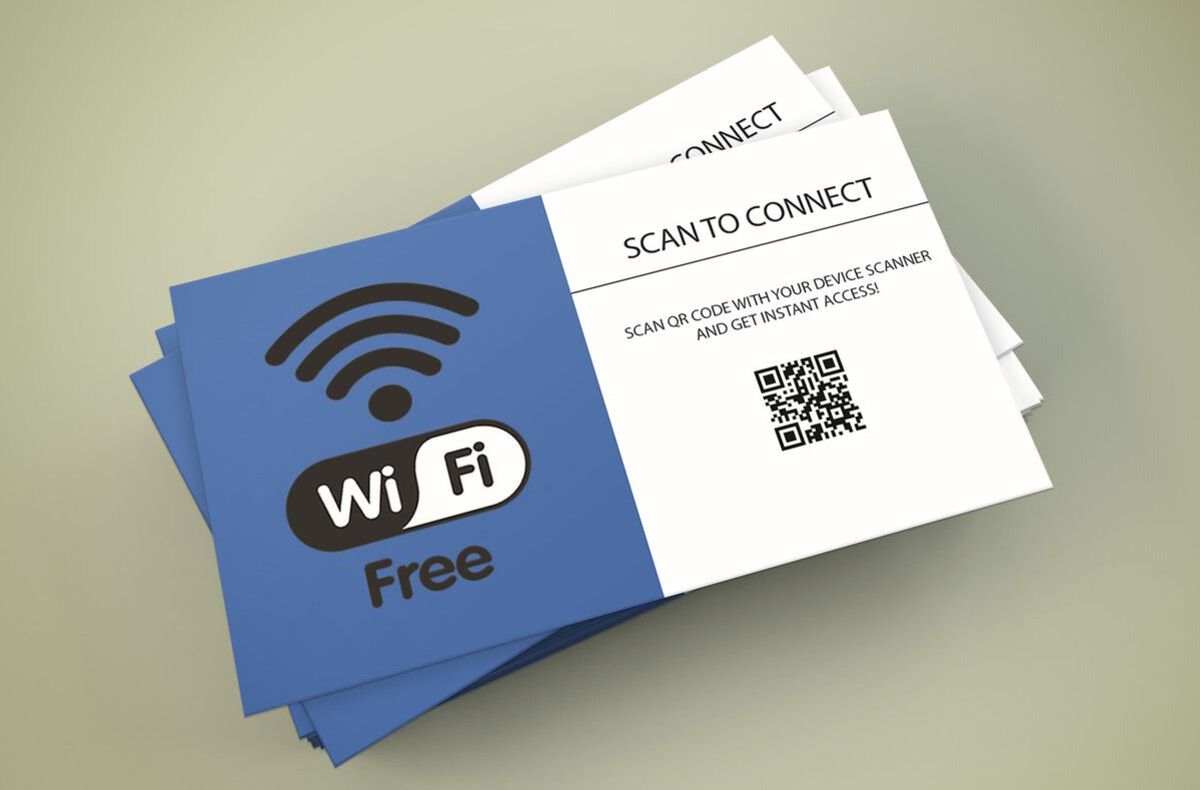
WiFi QR code stand cards for scan-to-connect guest access
How Does a WiFi QR Code Work?
The process is straightforward:
- You enter your WiFi network information. Add details such as the network name (SSID), password, and security type to a WiFi QR code generator.
- The QR generator converts the details into a QR code. The generator converts your WiFi details into a QR code that can be scanned by a compatible smartphone.
- You download or print the code. Once generated, you can save the QR code digitally, print it, or display it on a screen for guests to scan.
- A guest scans it with a compatible smartphone. A guest uses their smartphone camera or QR scanner to scan the code. The phone reads the WiFi information stored in the QR pattern.
- The phone recognizes the WiFi details and prompts the user to join the network. The phone recognizes the network details and prompts the user to connect, so they usually do not need to type the WiFi name or password manually.
The QR code can contain the SSID, security type, password, and hidden-network setting. Because these details are stored directly in the QR pattern, a standard WiFi QR code does not need to open a website before the phone can recognize the network.
How to Create a QR Code for WiFi
Creating a WiFi QR code only takes a few simple steps. You just need to enter your network information, generate the code, and make it available for guests to scan. Here’s how to create one:
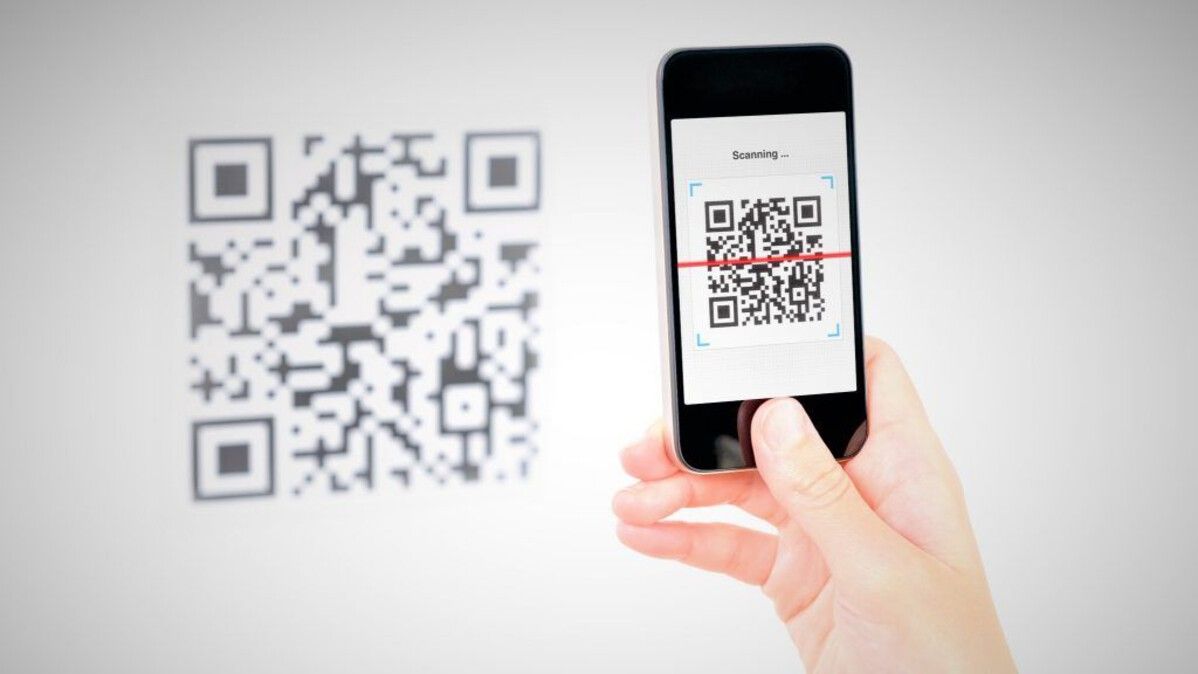
Phone scanning a WiFi QR code to connect - Source: Pinterest
1. Choose WiFi as the QR Code Type
Open QRCode Gen and select the WiFi QR code option from the menu. The platform also supports other formats such as Website, PDF, and vCard. For WiFi, simply enter the network name, password, and security type. A scannable QR code will be generated instantly for easy connection.
2. Enter Your WiFi Details
Add the information exactly as it appears in your router settings:
- Network name (SSID)
- Security type
- WiFi password
- Hidden network setting, if applicable
SSID and password values are case-sensitive, so avoid retyping them from memory. Copy the exact information from your router settings whenever possible.
3. Customize the QR Code
You can adjust the appearance of the code if you want it to fit a sign, table card, room guide, or other printed material. QRCode-Gen supports options such as colors, frames, and logos while providing a preview before download. Keep the design simple enough for phones to scan reliably. Strong contrast and sufficient clear space around the QR code are more important than adding heavy decoration.
4. Test and Download
Before printing the code, scan it with a phone and confirm that it recognizes the correct WiFi network. For a better test, use a device that has never connected to the network before, or forget the saved network first. This helps reveal mistakes in the SSID, password, or security setting. Once everything works, download the QR code and place it where guests can easily reach and scan it.
>>> Read more: How to Create a QR Code for a Link? The Quickest and Easiest Way to Generate a QR Code
Guest WiFi: A Simple Use Case
One of the practical use cases listed by QRCode-Gen is Guest WiFi. Instead of having visitors ask, “What's the WiFi password?”, you can place a WiFi QR code where they naturally need it. QRCode-Gen specifically suggests locations such as reception areas, meeting rooms, and guest rooms.
For example:
- Hotels: Put the code in guest rooms or welcome guides.
- Cafés and restaurants: Display it on tables or near the counter.
- Offices: Place it in meeting rooms for visitors.
- Events: Let attendees connect without repeatedly asking staff for the password.
- Rental properties: Include it in the property's welcome information.
The basic idea is the same: guests scan once instead of manually entering the network credentials.
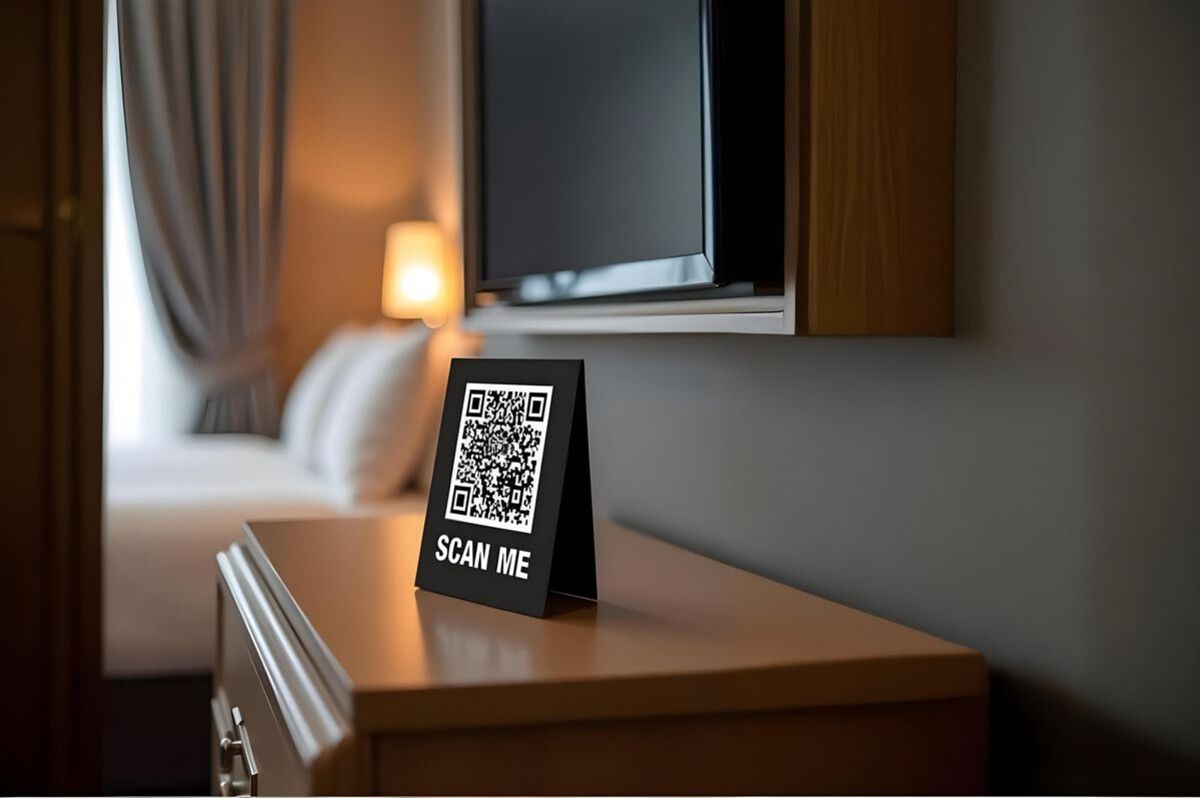
WiFi QR code tent card placed on a hotel room dresser
Things to Check Before Using a WiFi QR Code
A WiFi QR code makes access easier, but a few details are worth checking before you print it:
- Use the correct network information: Make sure the SSID, password, and security type exactly match your current router settings. An incorrect value will prevent the code from working.
- Test before printing: Always scan the final QR code on a real smartphone. If it's for a hotel room, restaurant, or office, test it in the exact location where guests will use it.
- Keep good contrast: Use a clear, high-contrast design so cameras can recognize the pattern under normal lighting. Avoid excessive decoration that makes the modules hard to read.
- Remember the QR code contains the password: The password is encoded in the QR payload and can be recovered with a decoder, so it isn't truly hidden. For guest access, use a separate guest network instead of exposing your primary network's credentials.
Testing a WiFi QR code before printing and displaying it
What Happens If the WiFi Password Changes?
A standard static WiFi QR code stores the network credentials directly in the QR pattern, including details such as the WiFi name (SSID), password, and security type. Because this information is built into the code itself, the QR code will continue to provide the same credentials even if you change your router settings later.
For example, if you change your WiFi password, the existing QR code will still contain the old password. You cannot simply edit the QR code image to replace the password. Instead, you need to update the WiFi details in the QR code generator and create a new QR code. If the old code has been printed on signs, menus, cards, or displayed in public areas, you should also replace those copies with the new one.
This is different from a dynamic QR code, where the QR code can point to an editable destination without changing the printed code. However, when WiFi credentials are stored directly in a static QR code, changing the network name, password, security type, or other connection details requires generating a new code.
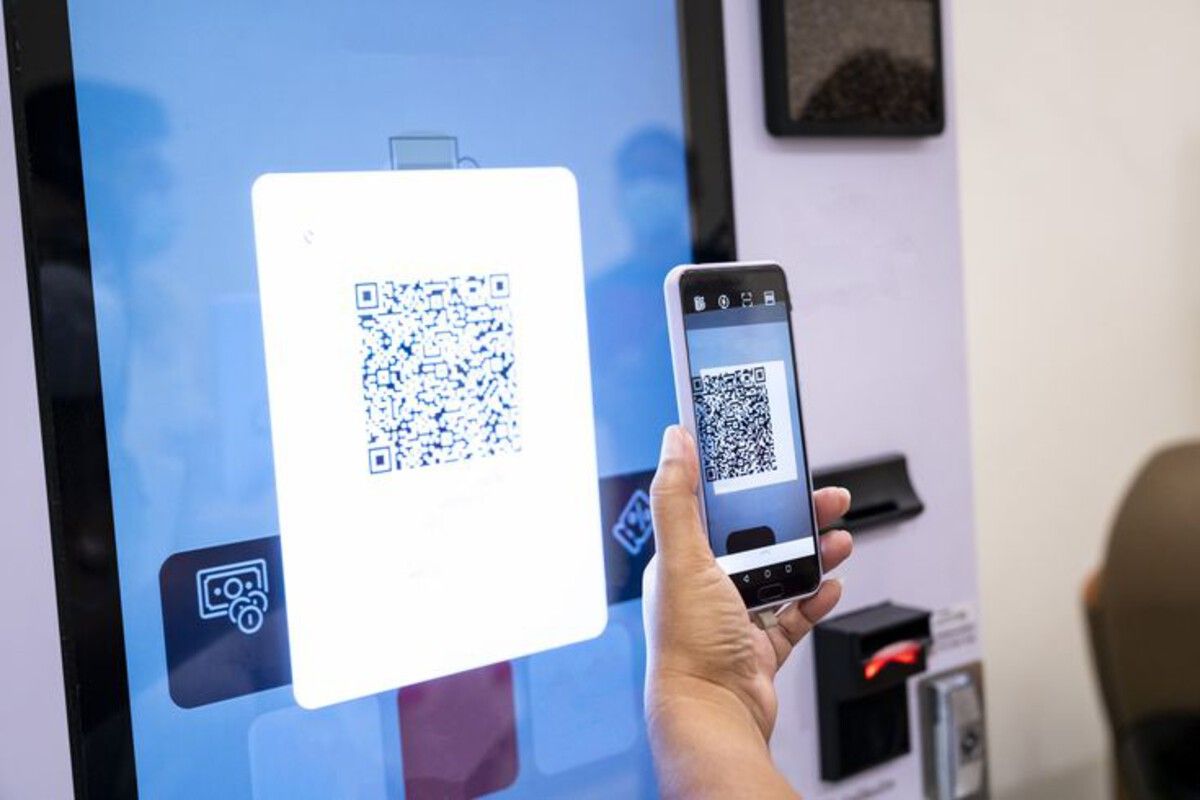
Scanning a WiFi QR code on a kiosk screen - Source: Pinterest
>>> Read more: Everything You Need to Know About Dynamic QR Codes
Frequently Asked Questions
Does a WiFi QR code work the same way on iPhone and Android?
Most iPhones running recent iOS versions can scan a WiFi QR code directly through the native Camera app without installing anything extra. Many Android phones also support this natively, though some older models or custom Android skins may require a separate QR scanning app to read the code properly.
Can a WiFi QR code be used for a hidden network?
Yes, as long as the hidden network setting is correctly configured when the code is generated. If this setting is left blank or set incorrectly, the phone may fail to detect the network even when the SSID and password are accurate.
Does the WiFi QR code need an internet connection to work?
No. The QR code stores the network credentials directly within its pattern, so scanning it does not require the phone to be online. The phone simply reads the embedded information and attempts to join the specified network offline.
Is a WiFi QR code safe to post publicly, such as on social media?
It isn’t recommended. Since the password is embedded in the QR code itself, anyone who scans or decodes the image can extract the credentials. Posting it publicly, even by accident, effectively shares your WiFi password with anyone who sees it.
Conclusion
A WiFi QR code turns a repetitive, mildly annoying task into a smooth, one-scan experience for your guests. It works well for homes, cafés, hotels, offices, and events alike, saving you from repeating the same password over and over. Just make sure your network details are accurate, test the code before printing it, keep the design clear enough to scan easily, and remember to generate a new code whenever your password or network settings change.
Ready to Create Your WiFi QR Code?
Try QRCode-Gen now. Enter your network details, generate your code in seconds, and let your guests connect with a single scan, completely free.