A well-organized menu helps customers choose dishes quickly, allows the restaurant to serve faster, and reduces ordering mistakes. With a QR code menu, grouping items into clear categories such as Appetizers, Main Courses, Drinks, and Desserts creates a more intuitive experience for both guests and staff.
This guide explains how to organize menu categories effectively with free tools such as Nine Menu, helping small and medium-sized eateries improve the ordering experience and streamline daily operations.
Why clear menu categories matter in a QR menu
Help customers find dishes and place orders
A long menu without categories can feel overwhelming. Customers may struggle to find what they want, overlook items, or need to ask repeated questions. Logical categories make dishes easier to browse and order.
Fit mobile browsing habits
Unlike printed menus, QR menus are usually viewed on small screens. Clear sections reduce unnecessary scrolling, save time, and make the menu easier to use.
Create opportunities for additional orders
Placing sections such as Side Dishes or Popular Drinks after the main courses can encourage customers to add items before checking out. This can increase revenue without additional advertising.
Make order management easier for staff
Organized categories help kitchen and service teams process orders more accurately, reduce mistakes, and manage ingredients more efficiently.
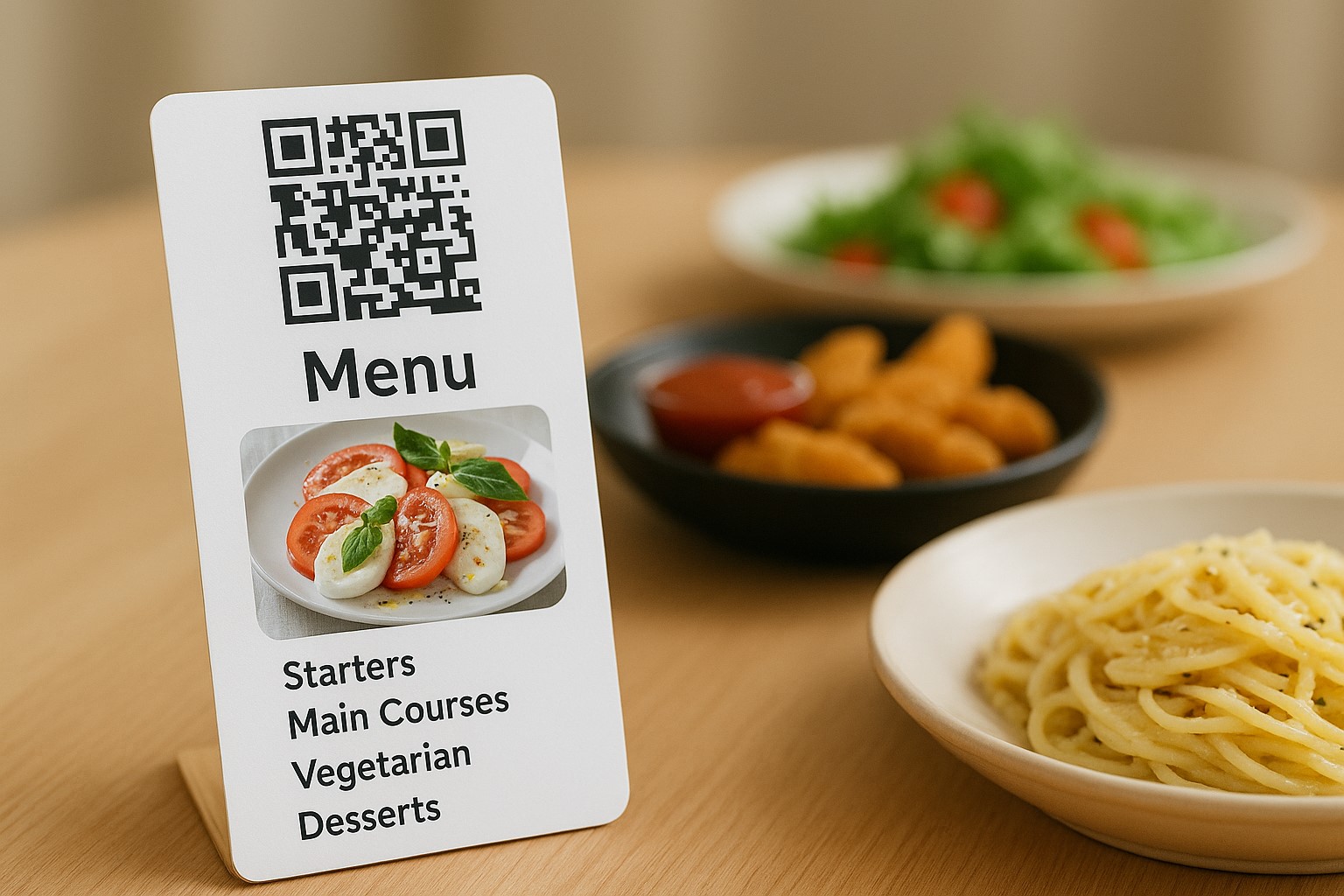
How to organize menu categories with Nine Menu
Step 1: Open Nine Menu
Go to nineqr.com, then sign in or create an account.
Step 2: Create a menu or edit an existing one
Click “Create menu,” enter a name for the menu, and select “Start editing.” To make changes to an existing menu, simply select it from your list.
Step 3: Add menu categories
In the menu editor, select “Add group” and enter a category name, such as Appetizers, Main Courses, Desserts, or Drinks. Add as many groups as your menu requires.
Step 4: Add dishes to each category
Within each group, click “Add new dish” and enter the dish name, price, description, and image.
You can also drag and drop dishes or groups to adjust their order.
Step 5: Preview, save, and share
Click “Preview” to review the layout. When you are happy with the result, click “Save” and generate a QR code to share the menu.
For a restaurant-ready setup, explore the Nine Menu QR code option.
Popular menu categories for small and medium-sized eateries
Appetizers
Spring rolls, fried rolls, salads, and soups
Main Courses
Pho, beef noodle soup, grilled pork rice, stir-fried noodles, and tofu with shrimp paste noodles
Vegetarian
Vegetarian fried rice, vegetarian salads, stir-fried vegetables, and tofu
Side Dishes
Fried eggs, boiled vegetables, pickles, and special fish sauce
Drinks
Sugarcane juice, iced tea, milk coffee, and bottled water
Desserts
Sweet soup, jelly, flan, and fresh fruit
Combos and set menus
Single-person, two-person, and family combos
New dishes and promotions
Use this optional section for newly launched or promotional dishes.
Tips for clear, appealing category layouts
Arrange categories in serving order
Consider listing categories in a natural order: appetizers, main courses, vegetarian dishes, drinks, then desserts.
Use subtle icons or emojis
Icons can make categories easier to scan. For example: 🥗 Appetizers, 🍜 Main Courses, 🧃 Drinks, and 🌱 Vegetarian.
Keep category names short and clear
Avoid overly elaborate names such as “Countryside Cuisine” or “Signature Dishes” if customers may not immediately understand what they include.
Add English labels for bilingual menus
For example, use labels such as “Vegetarian – Vegetarian” or “Drinks – Beverages.”
Prioritize your best-selling categories
Place the category containing your most popular items near the top, such as Main Courses or Snacks.
Long-term benefits of organizing dishes by category
More confident dish selection: Customers can choose more easily and may order additional items.
Faster service: Staff spend less time explaining the menu.
Fewer preparation mistakes: Orders are easier to review by category.
A better customer experience: The menu feels neat, clear, and modern.
A more professional brand presentation: A structured menu is easier to navigate, similar to those used by larger restaurants.
A QR menu can reduce printing costs while giving customers a more modern ordering experience. To get the most from it, organize dishes into logical, easy-to-browse categories. A clear menu helps customers order faster, reduces pressure on staff, and creates opportunities for additional orders.
Start editing your menu at nineqr.com to create a smoother, more professional ordering experience.