Learn how to create a QR code in 3 simple steps: choose content type, customize the design, and download. Plus tips for a scan friendly code.
How to Create a QR Code in 3 Simple Steps
QR codes have become one of the easiest ways to connect printed and digital content, from menus and posters to business cards and product packaging. If you've never made one before, the good news is that generating a QR code doesn't require any design skills or technical background. In most cases, you can go from idea to a downloadable QR code in under a minute. Here's how to create a QR code in three simple steps.
How to Create a QR Code
Step 1: Choose Content Type
The first step is deciding what you want your QR code to do when someone scans it. Do you want it to open a website, share your WiFi password, display a PDF, or save your contact details as a vCard? Most QR code generators, including QRCode-Gen, let you pick from a list of content types before you start building your code.
Choosing the right content type matters because it determines what information gets encoded. For example:
- Website URL: sends users to a specific webpage
- WiFi: lets phones join a network without typing a password
- vCard: shares contact details that can be saved directly to a phone
- PDF or document: opens a file, such as a menu or brochure
- Plain text: displays a short message when scanned
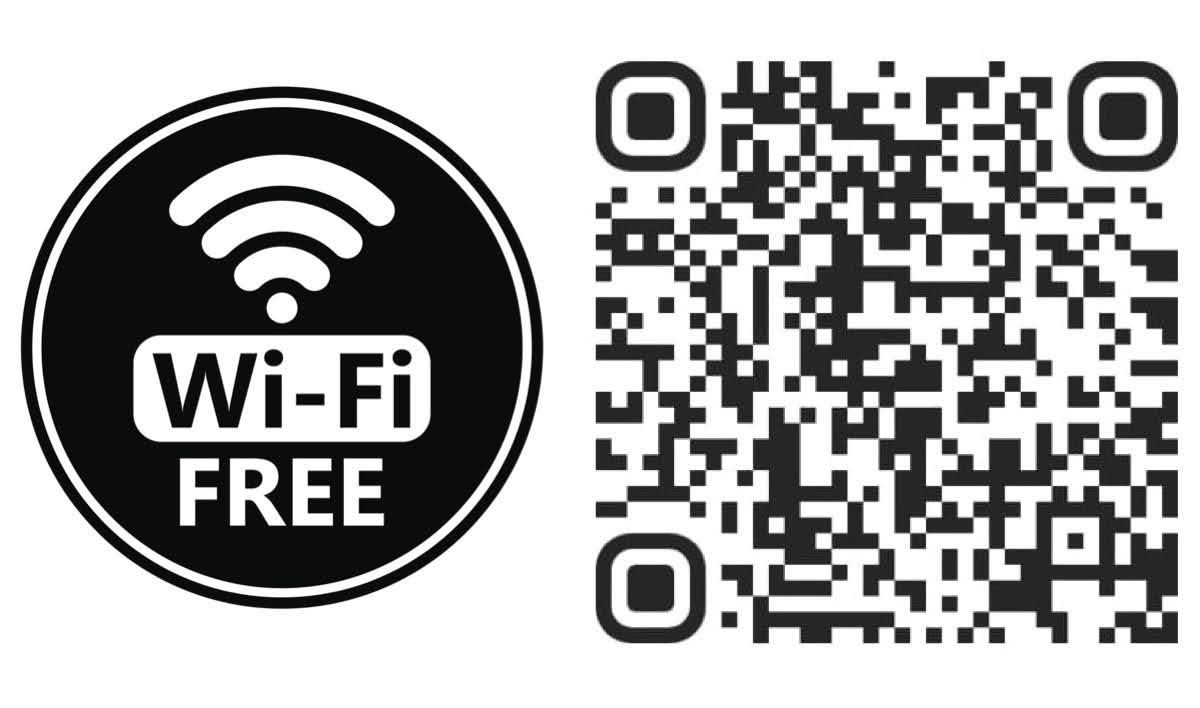
WiFi QR code for quick network access
Step 2: Customize
Once you've entered your content, the next step is customizing how the QR code looks. A generic black and white square works perfectly well, but most generators also let you personalize the design so it matches your brand or stands out on printed materials.
Common customization options include:
- Changing the foreground and background colors
- Adding a logo or icon in the center
- Adjusting the shape of the QR code's dots and corners
- Setting the error correction level, which affects how much of the code can be damaged or covered (like by a logo) while still scanning correctly
Keep in mind that heavy customization can sometimes reduce scannability, so it's a good idea to test your QR code with a few different phones before finalizing it, especially if you've added a logo or unusual colors.
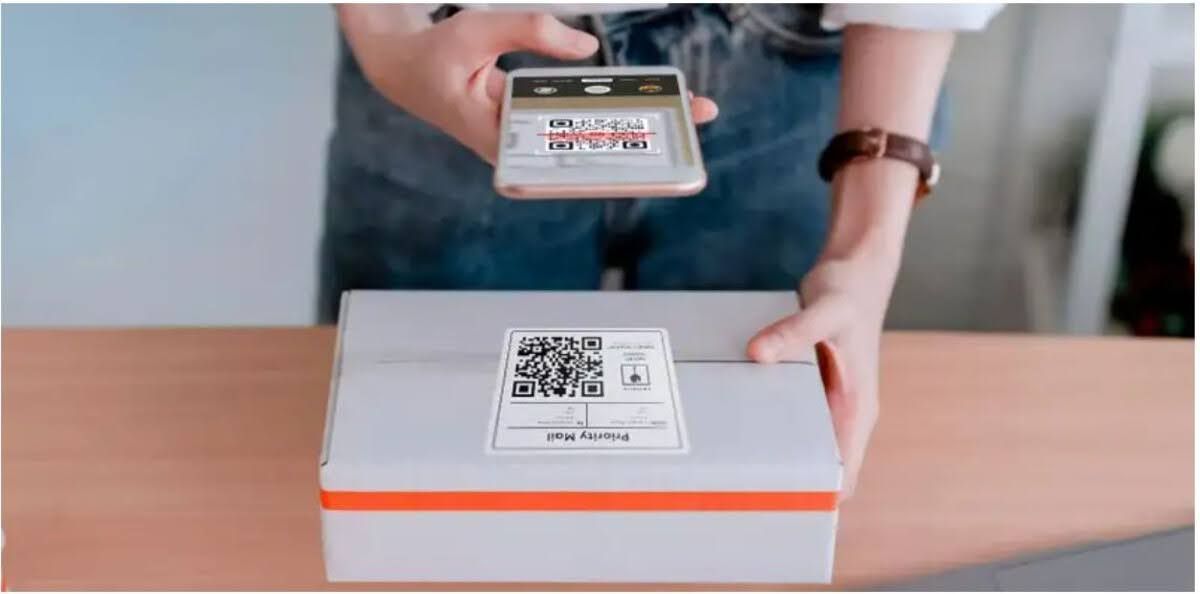
Scanning a customized QR code on a package label
Step 3: Download
The last step is downloading your finished QR code so you can use it. Most generators offer a few different file formats:
- PNG: best for digital use, like websites, emails, or social media
- SVG: a scalable, vector format ideal for printing at large sizes without losing quality
- PDF: convenient when you need to insert the QR code into a document or send it for professional printing
Once downloaded, you can place your QR code on packaging, signage, menus, business cards, or anywhere else it needs to appear. If you generated a dynamic QR code, remember that you can update its destination later without needing to create or reprint a new code, which is a useful option if you're placing it somewhere long term.
>>> Read more: Everything You Need to Know About Dynamic QR Codes
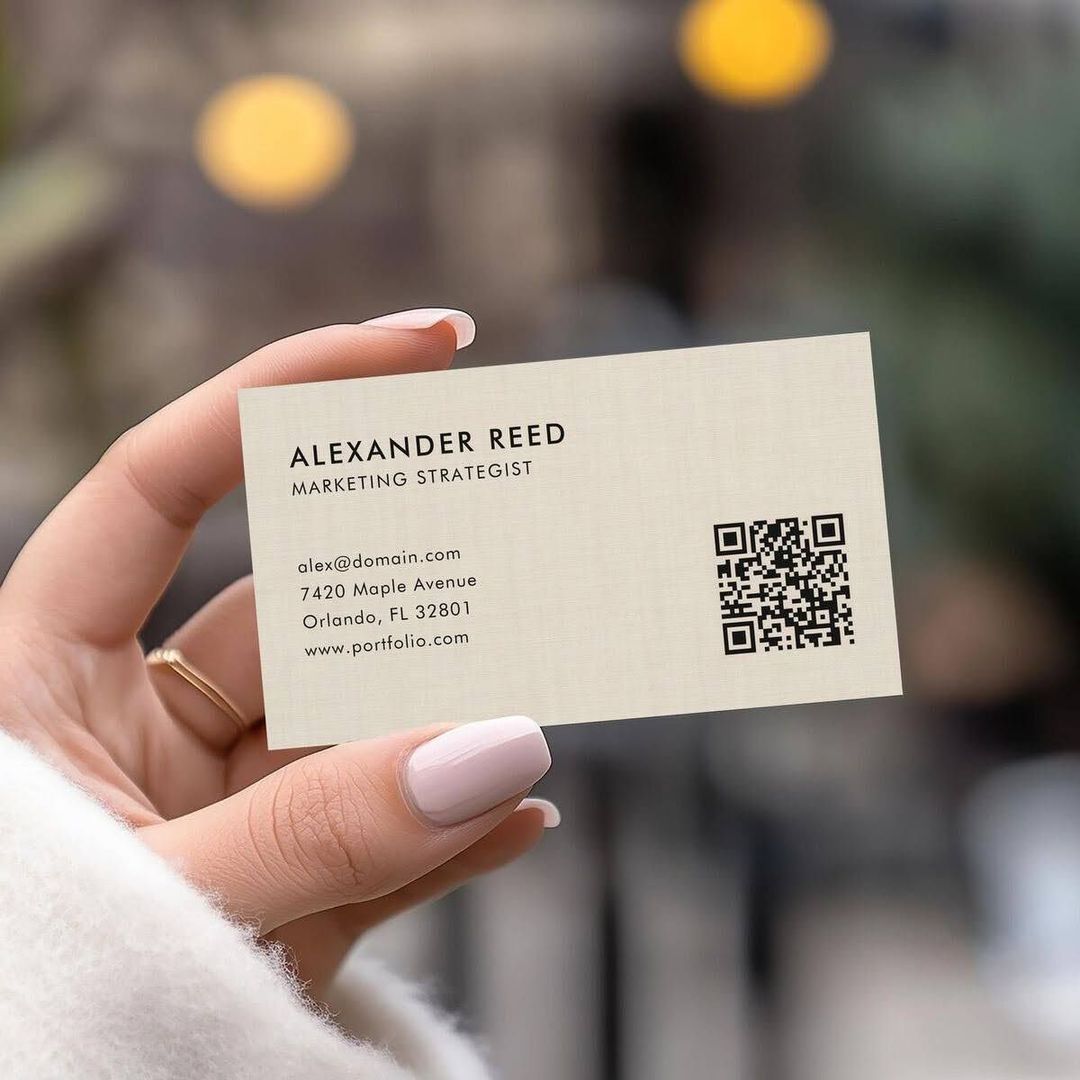
A downloaded QR code printed on a business card
Tips for Creating a QR Code That Scans Easily
A QR code only does its job if people can actually scan it. A few small details make the difference between a code that works every time and one that frustrates users:
- Use strong contrast: The QR pattern should stand out clearly from its background. Dark modules on a light background scan far more reliably than light on light or overly similar tones.
- Leave enough margin: Scanners rely on the blank space (the "quiet zone") around the code to detect its edges. Cropping too close to the pattern can cause scan failures.
- Don't over-customize: Logos, colors, and shaped dots can look great, but they should never cover or distort the core pattern that carries the actual data.
- Pick the right size: A code that's too small is hard to scan, especially on printed materials viewed from a distance, such as posters or storefront signage.
- Test it yourself first: Scan the code with a few different phones and from different distances before printing or publishing at scale.
- Double check the destination: Confirm the link, WiFi details, or file behind the code is correct and live before it goes out into the world. This matters even more for static QR codes, since the content can't be changed later.
>>> Read more: How to Create a QR Code for a Link? The Quickest and Easiest Way to Generate a QR Code
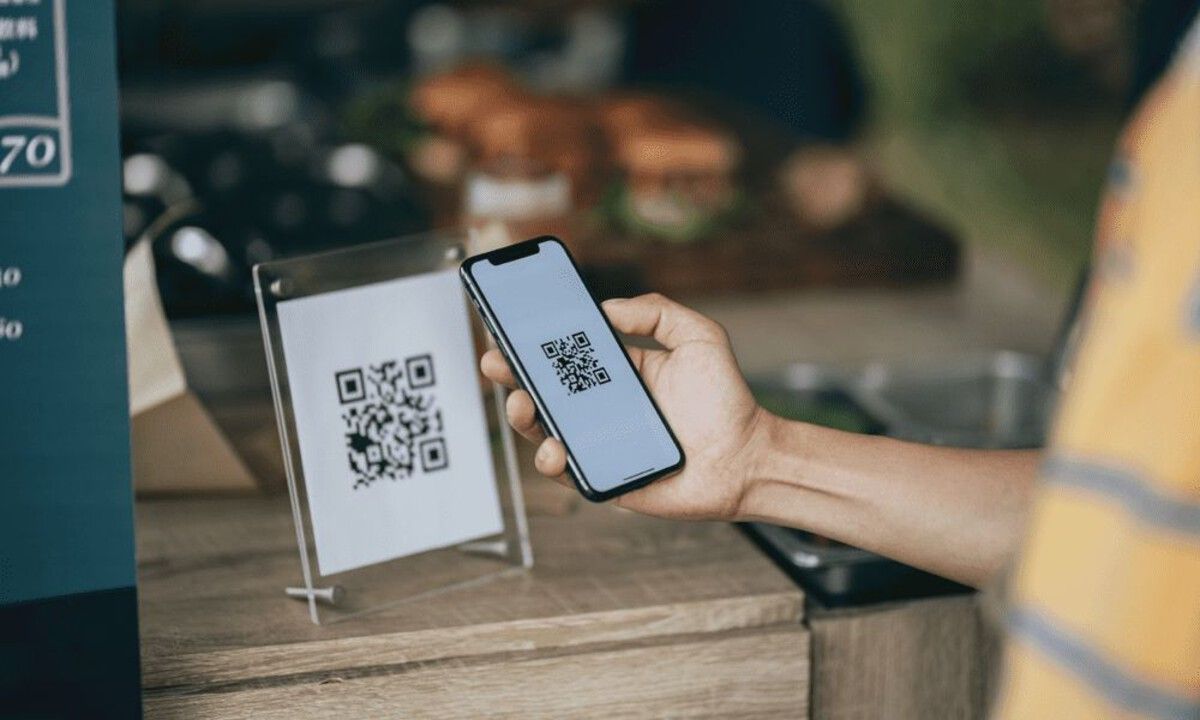
Scanning a table QR code at a restaurant counter
Frequently Asked Questions
Do I Need to Create an Account to Make a QR Code?
Not usually. Most generators let you create a basic QR code without signing up. That said, creating an account is often required if you want to use dynamic QR codes, save your codes for later, or access scan analytics.
Can I Edit a QR Code After Creating It?
That depends on the type you chose. A static QR code can't be edited, since its content is embedded directly in the pattern itself. A dynamic QR code, on the other hand, points to a managed redirect link, so its destination can usually be updated after the code has already been printed or published.
How Much Information Can a QR Code Hold?
It varies by the type of content and the QR code version, but a standard QR code can typically store anywhere from a short line of text to a couple thousand characters. Longer content, such as a full document, is usually best linked to rather than embedded directly, which keeps the pattern simpler and easier to scan.
Is It Free to Create a QR Code?
Yes, in most cases. Many generators offer free QR code creation for common content types. Features like advanced customization, dynamic redirects, and detailed scan analytics are often reserved for paid plans, though this varies by provider.