A Google Form is a practical way to collect feedback from customers, employees, event attendees, and other audiences. Adding a QR code makes the form easier to reach: people can scan it with their phone and respond without typing a long URL.
What Is a Google Form QR Code?
A Google Form QR code is a two-dimensional barcode that contains a direct link to your form. When users scan the code with their phone, they can open the Google Form immediately and submit their information.
Benefits of Pairing Google Forms With QR Codes
1. Add surveys to a wide range of marketing touchpoints
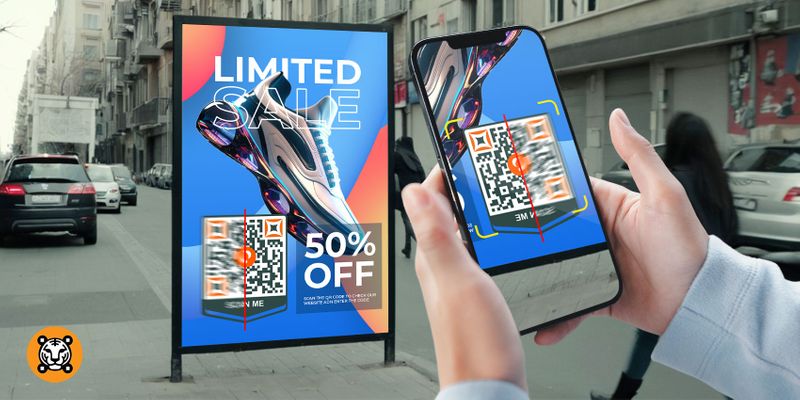
You can place a Google Form survey QR code wherever customers are likely to see it, including:
Flyers, brochures, invoices, and product packaging
Event presentation screens and TV commercials
Email campaigns and in-store signage
Social media posts and banner ads
This makes Google Forms and QR codes a flexible combination for gathering responses across different campaigns and channels.
2. Streamline data collection
QR codes can help you:
Reduce manual steps: Users do not need to type in a link or log in.
Increase form completion rates.
Review data in real time: Connect responses with Google Sheets for faster analysis.
This gives marketers a faster way to respond to feedback and refine their strategies.
3. Track response sources by region or campaign
You can create multiple QR codes that lead to the same Google Form and distinguish them with UTM parameters or link tracking. This allows you to:
Identify which QR code generates the most responses
Measure the performance of each marketing touchpoint
Analyze responses by location or target customer group
How to Create a QR Code for a Google Form
Follow these steps to create a QR code for any Google Form.
Step 1: Create your Google Form
Go to Google Forms.
Choose Blank or select a template.
Add your questions and tailor the form to your purpose.
When the form is ready, click Send in the upper-right corner.
Select the link icon and, if needed, choose Shorten URL.
Copy the form link.
Step 2: Generate a QR code from the form link
Use a QR code generator to turn the copied link into a scannable code.
Create the code with QRCode GEN
Open the Google Forms QR code generator.
Paste your Google Form link into the URL field.
Adjust the appearance if needed, such as the color, logo, or corner style.
Click Create QR code.
Download the finished code as a PNG or SVG file.
Other platforms
QR Code Monkey
GoQR.me
QR Code Generator by Adobe
These platforms support free QR code generation without requiring account registration.
Ways to Use Google Form QR Codes
1. Print them on physical materials
Add QR codes to advertising posters, product brochures, purchase invoices, and employee cards.
2. Display them at events
For seminars, training sessions, onboarding events, and similar activities, add the Google Form QR code to your slides to collect feedback, register attendees for materials, record attendance, and more.
3. Include them with products
To collect customer reviews, print survey QR codes on packaging, add them to thank-you cards included with deliveries, or incorporate them into product labels.
Best Practices for Google Form QR Codes
1. Test the link
Before printing or sharing the code, scan it with your phone to make sure it opens the correct form.
2. Use an appropriate size
Make sure the QR code is large enough to scan easily, especially on printed materials.
3. Keep the design easy to scan
If you customize the color or add a logo, maintain sufficient contrast so the code remains scannable. A custom QR code design should still prioritize reliable scanning.
4. Manage response availability
Google Form links do not expire automatically, but you can limit the response period through the form settings.
When Should You Use a Google Form QR Code?
| Usage scenario | Purpose |
|---|---|
| Events and seminars | Collect feedback and evaluations |
| Restaurants and cafés | Gather customer opinions about food and service |
| Businesses | Collect internal employee feedback |
| Classrooms and training sessions | Conduct quick tests and surveys |
| Products and services | Improve offerings through customer feedback |
Advantages of Using QR Codes for Feedback Collection
Greater accessibility: Participants only need a camera-equipped device and an internet connection.
Lower costs: There is no need to invest in complex survey software.
Simpler performance measurement: Google Forms provides statistics and spreadsheet integration.
Easy to use: People can scan the code and begin responding in seconds.
Google Forms and QR codes provide a straightforward way to collect feedback quickly and professionally. With a few simple steps, you can make it easy for participants to access your form without dealing with long links or complicated technology.
Related articles
Measuring advertising effectiveness
Spa customer surveys